
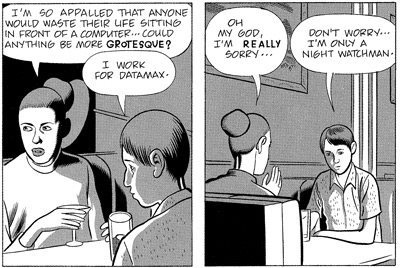
Testing out my scanner with a snippet from David Boring that seemed quite apt…
David Boring
Sharing AS3 Classes with a loaded SWF
I recently hit a strange bug when trying to share AS3 classes between a ‘shell’ Flex SWF and a loaded ‘module’ SWF. When you do this with Flash player 9.0.28, a run-time error is generated: “ReferenceError: Error #1074: Illegal write to read-only property [ClassName] on global. at global$init()”.
I imagine one solution is to prevent the shared classes from being compiled into the module swf. There is info on excluding classes using Flex here. This doesn’t seem to be possible using the Flash 9 public Alpha. Does anyone know how to exclude classes with Flash 9?
attachMovie() in AS3
Using external assets is great, but for some types of projects it makes sense to include your assets in the FLA as library symbols. According to this AS3 migration cheatsheet, attachMovie() has been removed in AS3. Does this mean we can no longer attach library symbols to the stage in AS3? Fear not flashers, you can still attach library symbols in AS3. Here’s how:
- In the Flash 9 IDE, create a new flash document.
- Create a new library symbol, call it “Test”. Draw some awesome graphics.
- Right click the symbol and open the symbol properties. Check the “Export in Actionscript” checkbox. By default Flash will use the symbol’s name as the Class name, and will warn you that a class for this symbol is to be automatically created. This class name replaces the old AS2 “linkage id”.
- On the main timeline, frame 1, add this code:
[as]this.addChild(new Test());[/as]
What this code is doing is creating an instance of your new class, and adding that instance to the main timeline’s displayList. (This new syntax is actually a lot more logical and consistent than the old attachMovie() syntax).
- Test your movie, see your awesome graphics.
To take this a step further you can associate some code with your new Symbol by creating an AS class file for it. Here’s how:
- Save the FLA from above somewhere.
- Create an AS file for your new symbol. To do this, create a text file using any text editor, or in the flash IDE with File->New->Actionscript File. Save the new file as “Test.as” in the same folder where your FLA is. (The AS file needs to be in the FLA’s class path. By default, the class path includes the current folder).
- Add your custom class code in the AS file and save it.
[as]package{
import flash.display.MovieClip;
public class Test extends MovieClip{
public function Test(){
trace(“This code runs when the Test class is instantiated”);
}
}
}[/as] - Test your movie. You will see the trace in the output window..
Here is a good intro tutorial on using AS3 and Flash 9, which covers the above in more depth, as well as the new AS3 document class.
Note this information only applies when using the Flash 9 IDE, not Flex 2 , since Flex 2 doesn’t have a library.
New 3D Splash Page
To celebrate my newfound freelance status, I created a new splash animation for my site. It’s my attempt to bring back the old-school ‘Skip Intro’ era :). It’s an ‘After Effects’ style text animation using papervision, combined with some tweens and flash 8 filters. It’s semi-random, so each time you watch it, it’s slightly different. Only 24k (not including the music). Music is by Funkstörung .
Airtight Splash
3D text animation using papervision, tweened motion and filters. Semi-random, so each view is slightly different. Only 24k (not including the music).
Papervision 3D Ribbon Experiment.
This weekend I got a chance to play with Papervision. I combined Papervision with my bezier tween class to come up with this. It looks kind of like the ribbon that gets twirled around in gymnastics.
Papervision is the first Flash 3D framework that’s gained real traction in the dev community. The code is well organized and documented which makes a nice change. Also there is a lot of active development happening, including an AS3 version in the works.
You can download the ribbon source code here. To use this source, you will first need to download the Papervision code using an SVN client. Once you’ve downloaded papervision, copy over the contents of the zip file.
If you’re using Eclipse, the easiest way grab papervision is to install Subclipse, then do a File -> Import -> ‘Checkout Projects from SVN’. Enter the repository URL: http://svn1.cvsdude.com/osflash/papervision3d. Eclipse will create a new project for you and download the files.
Be aware that papervision is alpha and some things may not work. For more papervision help, check instructions here and here.

 Latest Tweets