AS3 Tween Engine Comparison

One of the most popular AS3 tween engines in Zeh Fernando’s Tweener. Another tween engine I just found out about is Jack Doyle’s TweenLite. Both are great lightweight engines that provide a convenient syntax for handling tweens.

There is also Flash’s built in syntax for handling tweens. Until today I thought that calling an AS3 tween in Flash required the Flex framework, but it turns out that in addition to Flex’s mx.effects.Tween there is also a Tween class built into the Flash Player: fl.transitions.Tween. This works exactly like Flash’s AS2 tween class.

So, which is the best one to use? Tweener and TweenLite both offer an easier way to handle multiple tweens, delayed tweens, color tweens and more. TweenLite is smaller at 2k, over Tweener’s 10k. I haven’t dug into all the details of both, but for most cases, TweenLite does everything you need.

One other thing I love about TweenLite is that by default it will overwrite previous tweens to the same object. This means if you apply many tweens to the same object (for example a button color tween on rollover/rollout), you won’t start piling up tween objects in memory. In practice, the memory usage for a tween object is very small, but its nice to know that over a long period of time youre SWF won’t be leaking memory.
New Job, New City, New OS

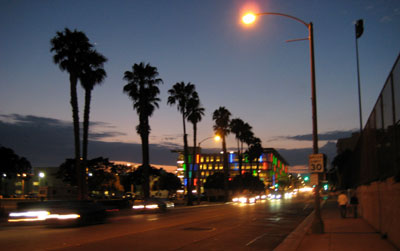
L.A.

Last week I started my new full-time position with Yahoo’s Entertainment division. I’ll be working with a crack team of designers and developers, prototyping new features and interfaces to showcase Yahoo’s entertainment content (movies, music, TV, celebrities, games). One of the great things about working at Yahoo is the huge traffic they enjoy, which guarantees plenty of eyeballs on your work. Also, there is a great vibe to the place – everyone seems very cool and psyched about working here.

This job has meant a move to Santa Monica, California. It’s a big change from my previous home in Cambridge, MA. So far it’s been 72° and blue skies every day. I’ll have to brush up on my surfing skills 🙂

As if that wasn’t enough change, I’ve also switched my work machine to a Mac. Wish me luck as I fumble around looking for the right-click button and trying to get the ‘End’ key to work.

roofs v4.0 goes live

byroofs

roofs is Agnieszka Garofeanu’s great design portfolio. I helped Agnieszka with the coding for the site. The site uses a variable height SWF as described by Hoss Gifford here. This allows browsing multiple large images easily by using the browser scroll bar. I like the way the site navigation is really simple, allowing you to focus on the content.

Slower Photo Tweaking Action

Image by Eliot Shephard

Eliot Shephard is one of the best photographers out there. His groundbreaking photoblog Slower.net is a collection of all the crazy stuff he sees in New York and elsewhere.

Eliot was kind enough to share with me (and you) one of his Photoshop actions for processing digital photos. This action walks you through the most important steps for processing your images, allowing you to tweak the settings as you go. None of this stuff will be news to Photoshop experts, but newbies (like me) should find it very helpful.

To install the action: Download this file to your desktop. Open Photoshop. Drag the file into Photoshop’s action palette.

To use the action: Open an image in Photoshop. Select the ‘Slower Photo Tweak’ action in the action palette. Click the little arrow at bottom of the palette to start the action.

Notice the checkmarks and dotted boxes to the left of each step. An unchecked step will be skipped. The dotted box represents a dialog box. If the box is there it means Photoshop will ask you to tweak the settings for that step. The default settings here mostly have no effect, the idea is that you eyeball the settings for each step.

The steps are as follows:

  1. Shadows/Highlights. A small percentage here can bring out detail in a dark or overexposed photo.
  2. Curves. A slight ‘S’ curve will increase the lighting drama (for example in clouds).
  3. Image/Canvas Resize
  4. Levels. To increase ‘crushiness’/contrast, drag in the white arrow to the left of the black mountain. Drag the grey arrow around to lighten or darken the image.
  5. Saturation. A slight negative saturation gives that de-saturated look that is all the rage.
  6. Unsharp Mask. This step applies an unsharp mask on the lightness channel, which gives a very nice, subtle sharpening to the image. The default here is good.
  7. Save. Saves your modified image in a new location. To set the default path for your saves, double-click the path in the action.

When you first start processing your photos, the temptation is to overdo the effects, making everything look like a still from the movie “300“. Once you become familiar with the options available and can recognize the effects in other images, you will find that the key is adding just enough of a tweak to bring out the image’s natural qualities.

Thanks to Eliot for providing this, and if anyone has suggestions to improve the action, let me know in the comments.

The Single Most Important Feature for a Successful User Interface.

This feature:

  • made Google a world leader
  • makes video games so enjoyable
  • is why geeks prefer Notepad over MS Word
  • makes using some web apps so frustrating

The feature is : instant response.

In the real world, you touch something and it moves. You don’t have to wait 3 seconds for the universe to calculate the object’s new position. Instant response is what the brain expects. Anytime an application make us wait, it kills the flow state and our enjoyment of the app.

What makes Donkey Kong so fun?
Donkey Kong has it. Does your application?

Think about using a computer for 8 hours every day. Think how long you are just waiting.

  • Waiting for webpages to load.
  • Waiting for your machine to reboot (arrrrgh).
  • Waiting for applications to load (e.g. Photoshop).
  • Compile times.
  • etc.

Take these times and multiply by the millions of times you experience them, and you have a lot of your life wasted. This is stealing your valuable time on this earth.

It’s not even useful waiting, because you don’t know when the wait will finish, so you don’t have time to focus on other activities. In the future all UIs will be instant response. Future People will be shocked and saddened to realize that we had to waste so much time looking at progress bars.

So my main piece of advice, from a lifetime of using and building computer apps is – make it faster.

  • Make it smaller
  • Make it lighter
  • Sacrifice unnecessary functionality
  • Preload when possible.

Give the user instance response. If you can’t do that, then at least give them instant feedback with some kind of front-end animation, and try to accurately indicate how long the user will be waiting.

Awesome iTunes Visualizer

good stuff

Robert Hodgin has released a fantastic iTunes visualizer, based on his mind-blowing processing experiments. I’ve never been a fan of visualizers in the past, probably because they typically look like something from an early 70’s sci-fi TV show (and not in a good way). In contrast this thing is all smooth organic 3-d motion and lovely glowing orbs.